A busy studio can have dozens of shoots going at once: a new inquiry, a client who just paid the deposit, a shoot that wrapped yesterday, an album being retouched, photos waiting to be delivered. When all of that lives in chat threads, spreadsheets, and people's heads, an inquiry goes unanswered, or two people each think the other is editing.
Framie's kanban board puts every booking in one place, so the whole team can see where each shoot stands and who's on it.
The kanban board and Bookings are part of the Pro and Max plans.
Each shoot is a card, each stage a column
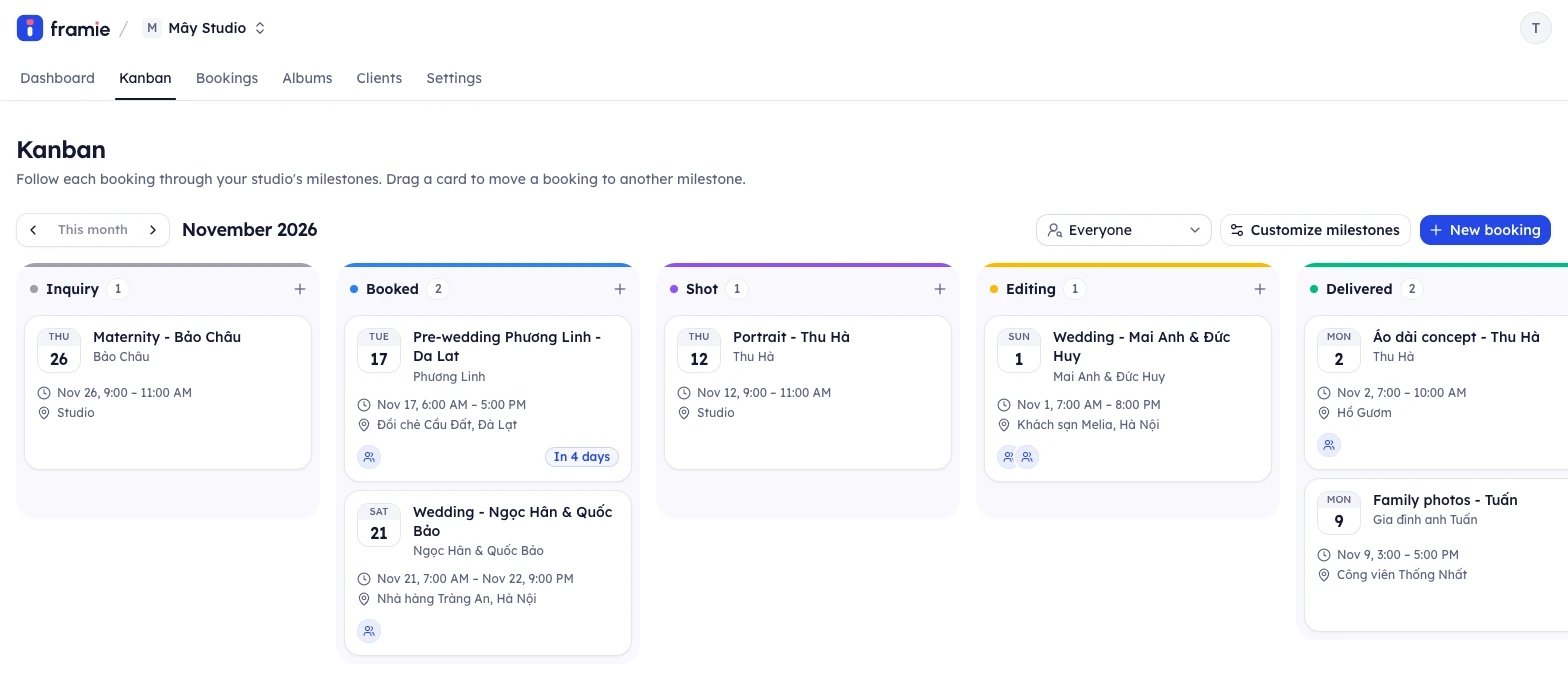
Each booking is a card on the board, tied to a client, with its shoot dates, location, session type, price, and notes. Every booking needs a start and an end time, so each shoot sits in the right place on the calendar and in your studio's numbers. The board's columns are milestones, the stages a shoot moves through.
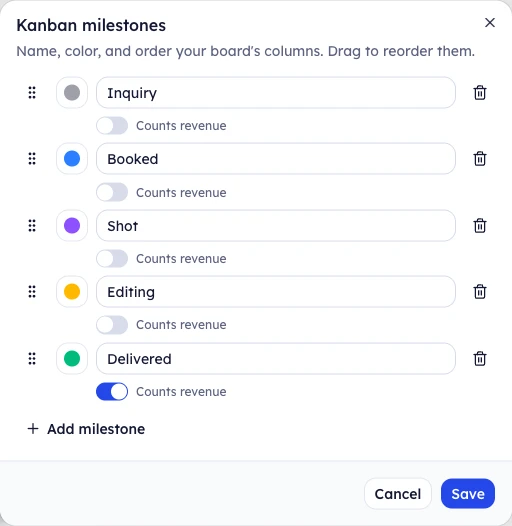
A new studio starts with five: Inquiry, Booked, Shot, Editing, and Delivered. Rename them, recolour them, reorder them, or add your own, such as "Deposit paid" or "Printing album", up to 20. Deleting a milestone never deletes a booking: its cards move to No milestone for you to sort again.
Under each milestone's name is a Counts revenue switch. Turn it on for the milestone that means a shoot is done, usually Delivered: the price of every booking in that column adds to the revenue of the month it's shot in. A new studio has it on for Delivered already.
As a shoot moves along, drag its card to the next column. You choose the order within a column too, so urgent shoots stay on top.
The board shows one month at a time, starting with this one: each column holds only the shoots in that month, so the board doesn't grow forever. Use the arrows beside the month to see the month before or after, and This month to come back. The month is in the link, so you can send it to a teammate.
Assign each shoot to the right people
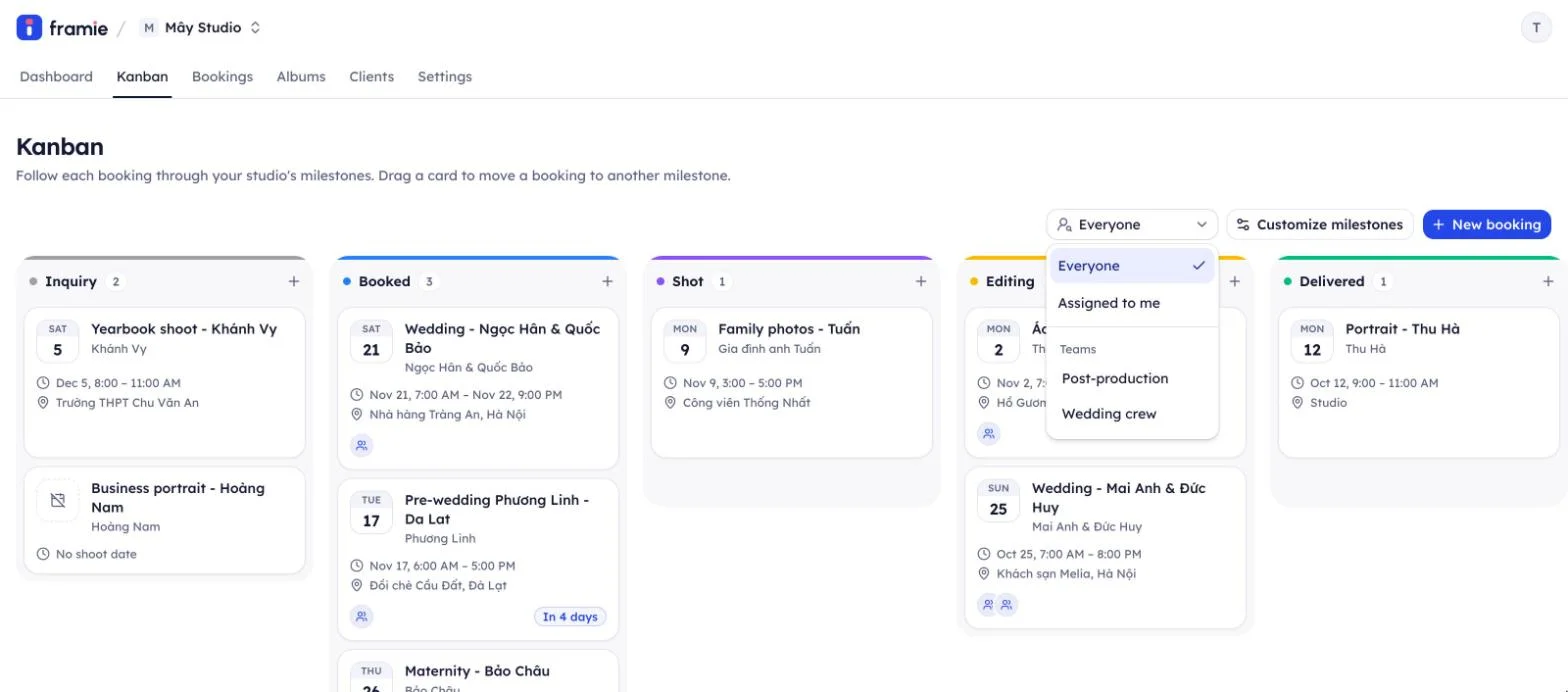
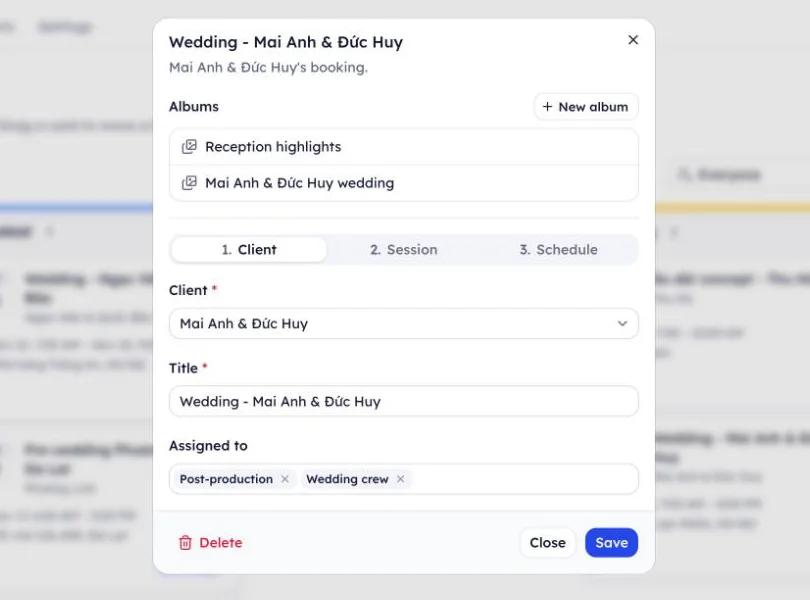
A booking can be assigned to any of the studio's members, to a whole team such as "Wedding crew" or "Post-production", or both. Filter the board by assignee and each photographer sees only their shoots, including those assigned to a team they're on.
Permissions stay clear: every member can see the board, owners, admins, and photographers create and move bookings, and only owners and admins change the milestones.
How the board connects to the rest of Framie
The kanban board sits at the centre of Framie's studio tools. Every card links to a client, the calendar, albums, and the studio's numbers.
Booking site: requests become cards
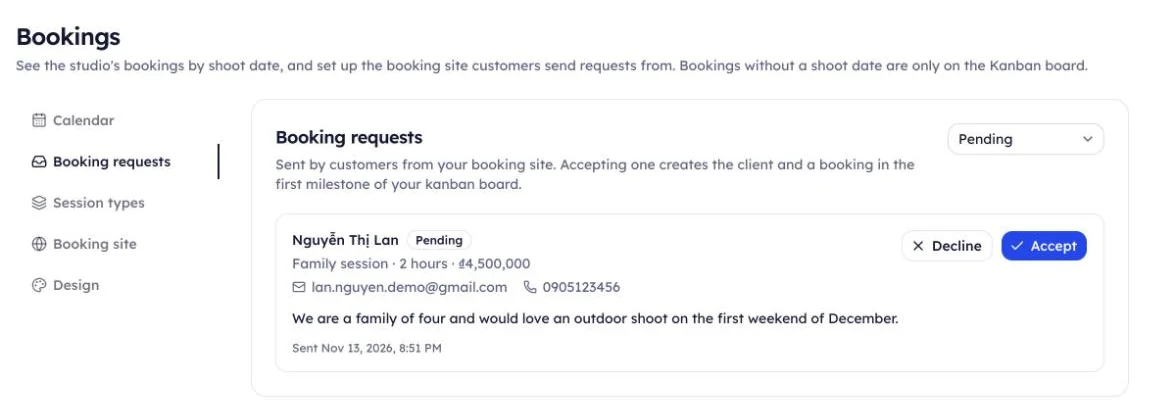
When a client books on your studio's booking site, they pick a session type and a free time and send a request. You click Accept, and Framie finds the client by email or creates them, then creates a booking with the session type, time, and price they picked, in your board's first milestone. Nothing to type again.
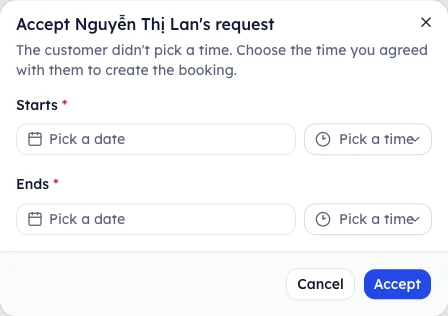
If a client sends a request without picking a time, such as for a session type without availability, Framie asks for the time you agreed with them before accepting it. The end fills in from the session type's duration, and you can still change it.
The booking site's free times also leave out the times your bookings already take, so clients can't book over a shoot you've accepted.
Calendar: the same shoots, by day
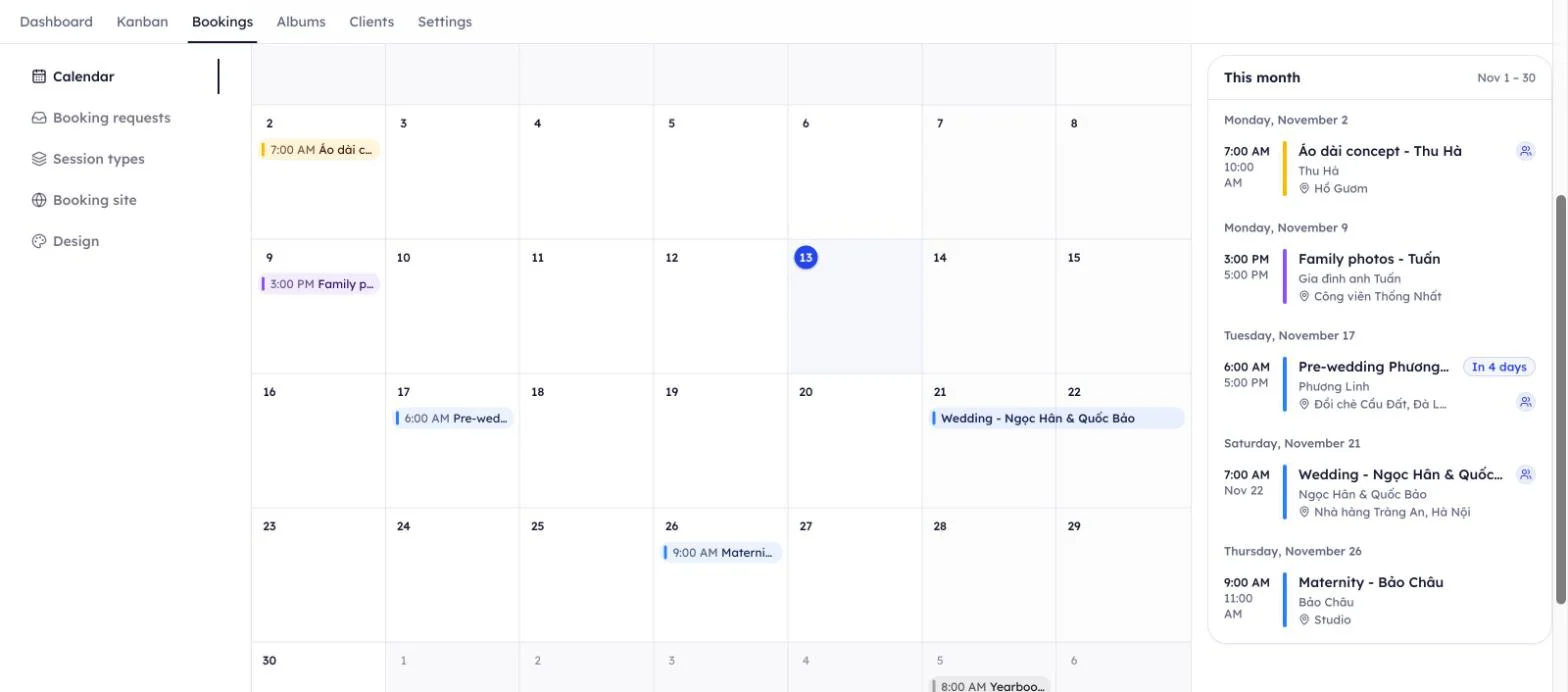
The Bookings tab shows those same bookings on a month calendar, in their milestones' colours. A wedding across several days shows as one bar across them. A booking opens in the same dialog from the calendar or the board, so editing works the same everywhere.
Albums: from shoot to delivered photos
Open a card to see the shoot's albums and create a new one right there, with the client already filled in. From the album, the client picks photos for retouching, reviews your edits, and receives their gallery. A booking can have several albums, such as a pre-wedding and a wedding day album.
Dashboard: the whole studio on one screen
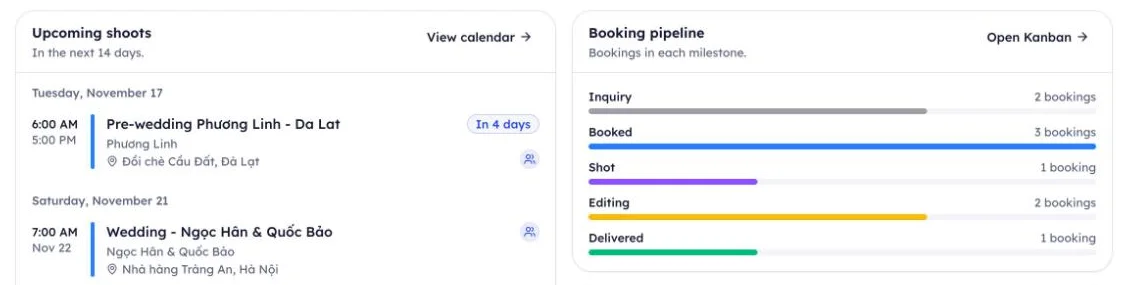
The Dashboard counts the bookings in each milestone and lists the shoots in the next 14 days, the albums waiting on you or on your clients, and your clients' recent activity. Switch to Mine and each person sees only the bookings and albums assigned to them.
The first number is Revenue this month: the prices of the month's bookings that sit in a milestone with Counts revenue on. Drag a card into Delivered and the revenue goes up straight away; drag it out and its price comes off. If no milestone counts revenue yet, the tile reminds you to turn it on on the kanban board.

A shoot's journey through Framie
- A client sends a request from your booking site. You accept it, and the card appears in Inquiry, or your first column.
- The client pays the deposit. Drag the card to Booked and assign a photographer.
- The shoot date shows on the calendar and in the Dashboard's upcoming shoots.
- After the shoot, drag it to Shot, create an album from the card, and send the client the link to pick photos.
- Once they've picked, drag it to Editing and assign your post-production team.
- The client accepts the edits and gets their gallery. Drag it to Delivered, and its price adds to the month's revenue on the Dashboard.
Every step lives on one board, so no shoot falls through the cracks.
Name your milestones the way your studio already talks about its stages. The closer the board is to how you really work, the easier your team takes to it.